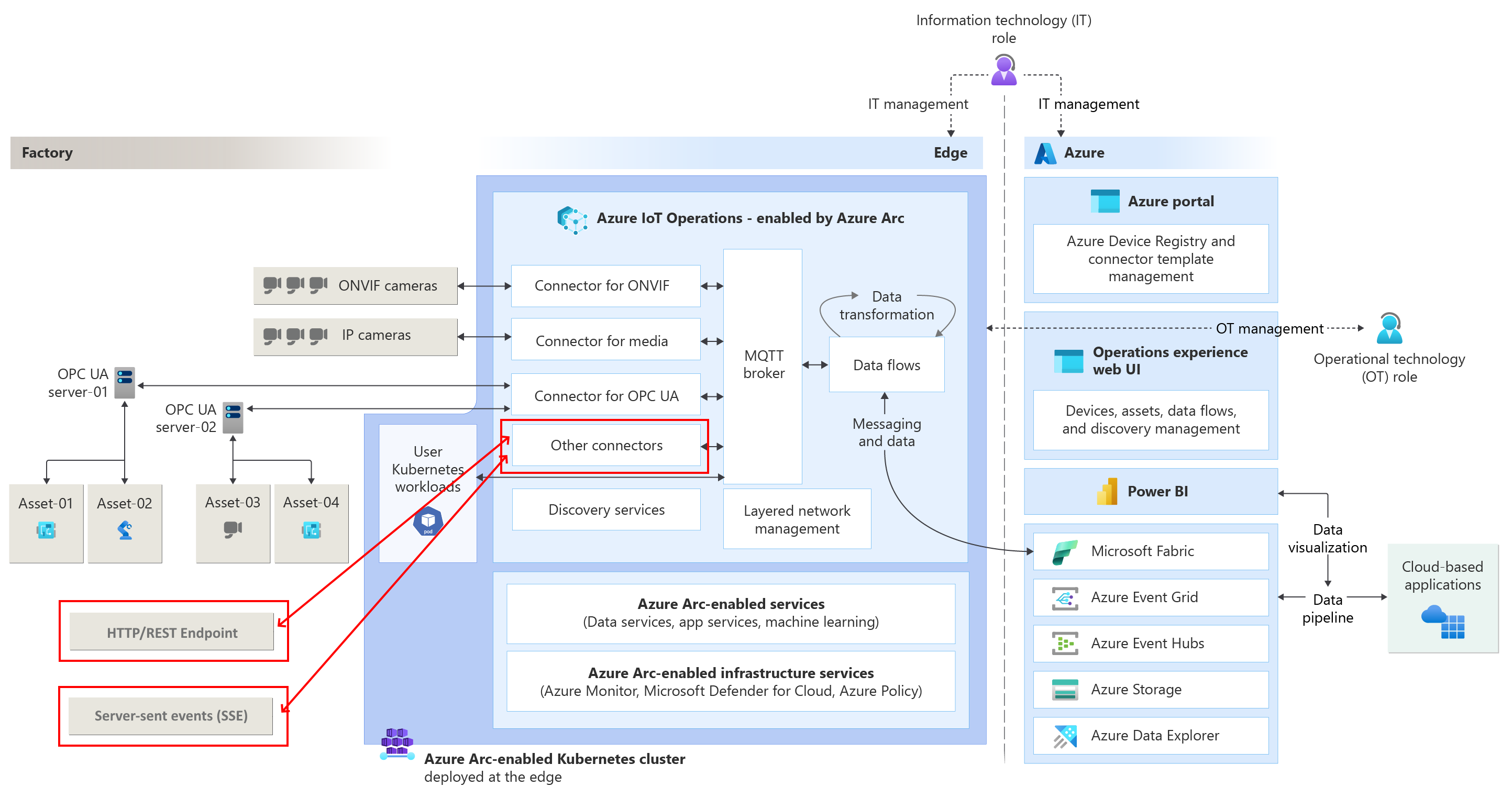
Azure IoT Operations is an Edge platform for Azure IoT, part of Azure IoT vNext (part of the latest Azure IoT stack with other new IoT features like the MQTT support for Azure EventGrid Namespaces and Microsoft Fabric Real-Time Intelligence).
Azure IoT Operations offers a great experience for Edge computing ‘between four walls’, in a factory, etc. It’s like a small data center, able to support various devices and industrial protocols at once.
Azure IoT Operations offers several connectors for southbound industrial protocols. In the past, I already blogged about supporting eg. OPC-UA telemetry and ONVIF events.
In this post, we look at the native support for HTTP/REST and SSE.
I will show how to build demonstration services, offering both an HTTP/REST endpoint and an SSE endpoint, and how to consume them using Azure IoT Operations connectors.
Let’s see this in action.
This is part sixteen of a series of blog posts about Azure IoT Operations:
- Azure IoT Operations: (in)secure MQTT broker authentication
- Azure IoT Operations: Microsoft Fabric RTI Eventstream dataflow
- Azure IoT Operations: Sending commands via EventGrid MQTT
- Azure IoT Operations: Reading OPC-UA server tags
- Azure IoT Operations: Monthly releases
- Azure IoT Operations: Event Hub telemetry and commands
- Azure IoT Operations: Local dashboard based on TIG stack
- Azure IoT Operations: control a signal tower via Microsoft Fabric RTI feedback loop
- Azure IoT Operations, building a custom module using the SDK
- Microsoft Fabric RTI: Integrating public and private LoRaWAN sensors
- Azure IoT Operations: Deploying custom vision
- Azure IoT Operations: Act on ONVIF camera events
- No-Code Dataflow transformations via message schema inferencing
- Azure Arc Connected Machine agent, automatic update
- Azure IoT Edge and Azure IoT Operations, the Edge of Tomorrow
- Consuming southbound HTTP/REST and SSE endpoints using Azure IoT Operations
Prerequisites
If you want to follow along, you need to have an Azure IoT Operations node running in your local network.
To consume both protocols, have these types of services deployed on the local network and have the endpoints exposed to the Azure IoT Operations instances.
If you do not have these service endpoints, I provide them via this GitHub repository.
Note: Use these services for demonstration purposes. These are not production-ready.
Both service connectors are GA.
HTTP/REST endpoint service
I expect you have basic knowledge about how an HTTP/REST endpoint works.
The sample service provides a RESTful API with a ‘/api/counter’ endpoint.
Make a call like:
http://[local IP address]:5000/api/counter
This endpoint is protected with HTTP Basic Authentication (the root endpoint is open to everyone).
Note: The port is hardcoded. The service does not offer its endpoints secured by TLS. You can use this example for tests only.
Example using curl:
curl -u anyuser:p@ssw0rd! http://[local IP address]:5000/api/counter
Note: The password is ‘p@ssw0rd!’ as seen in the app settings. This password is not encrypted by default. HTTP Basic Authentication is only secure when used in combination with TLS!
The response looks like:
{"deviceId":"HttpRestEndpointDevice","timestamp":"2026-01-11T15:06:58.442483+00:00","counter":1}
The counter value will be increased on every call from some service. The state (the counter) is kept in memory.
This looks like this on the service:
Starting BasicHttpRestServiceApp having Rest endpoint '/api/counter'info: Microsoft.Hosting.Lifetime[14] Now listening on: http://192.168.3.181:5000info: Microsoft.Hosting.Lifetime[14] Now listening on: https://192.168.3.181:5001info: Microsoft.Hosting.Lifetime[0] Application started. Press Ctrl+C to shut down.info: Microsoft.Hosting.Lifetime[0] Hosting environment: Productioninfo: Microsoft.Hosting.Lifetime[0] Content root path: C:\git\azure-iot-operations-connectors-services\BasicHttpRestServiceApp\bin\Debug\net10.0Device HttpRestEndpointDevice generated counter 1 at 4/6/2026 3:11:05 PM +00:00
If you see calls, you know a client is connected. You can test it out using a browser as a client.
Server-sent events (SSE) endpoint service
For those who are new to SSE, it offers a continuous stream of messages, each separated by a ‘newline’.
So, the client connection is kept open!
One message is a combination of three lines:
- A line starting with ‘id: ‘
- A line starting with ‘event: ‘
- A line starting with ‘data: ‘
A client will share the last received ID as the header named ‘Last-Event-ID’ when connecting.
On the server, this looks like:
SSE Test Server: Starting SSE endpoint '/sse/counter'info: Microsoft.Hosting.Lifetime[14] Now listening on: http://192.168.3.181:5010info: Microsoft.Hosting.Lifetime[14] Now listening on: https://192.168.3.181:5011info: Microsoft.Hosting.Lifetime[0] Application started. Press Ctrl+C to shut down.info: Microsoft.Hosting.Lifetime[0] Hosting environment: Productioninfo: Microsoft.Hosting.Lifetime[0] Content root path: C:\git\azure-iot-operations-connectors-services\BasicSseService\bin\Debug\net10.0Client 0HNKJTJH6O2S1 connected to SSE stream from 192.168.3.181Client 0HNKJTJH6O2S2 connected to SSE stream from 192.168.3.196Client 0HNKJTJH6O2S2 sent Last-Event-ID: 52
Note: Azure IoT Operations expects all three kinds of message lines.
Note: The ‘secured’ endpoint is untested.
The sample service provides a Server-Sent Events API with a ‘/sse/counter’ endpoint.
Make a call like:
http://[local IP address]:5010/sse/counter
This endpoint is open to everyone, no security in place.
Note: The port is hardcoded. The service does not offer its endpoints secured by TLS. You can use this example for tests only.
Example using curl:
curl http://[local IP address]:5010/sse/counter
The SSE response will look like:
id: id: 1event: event: counter[16:57:55] Received - Device: SseEndpointDevice, Counter: 1, Timestamp: 2026-04-06 14:57:55id: id: 2event: event: counter[16:57:56] Received - Device: SseEndpointDevice, Counter: 2, Timestamp: 2026-04-06 14:57:56id: id: 3event: event: counter[16:57:57] Received - Device: SseEndpointDevice, Counter: 3, Timestamp: 2026-04-06 14:57:57
The counter value will be increased on every call for every individual connection. The state is kept in memory.
Note: The connection ID is shown in the console.
You are now ready to consume these endpoints via Azure IoT Operations.
Deploying the connector templates
Before you can use the connectors on the edge, you need to deploy the connector templates.
This is done on the Azure portal for each Azure IoT Operations instance:
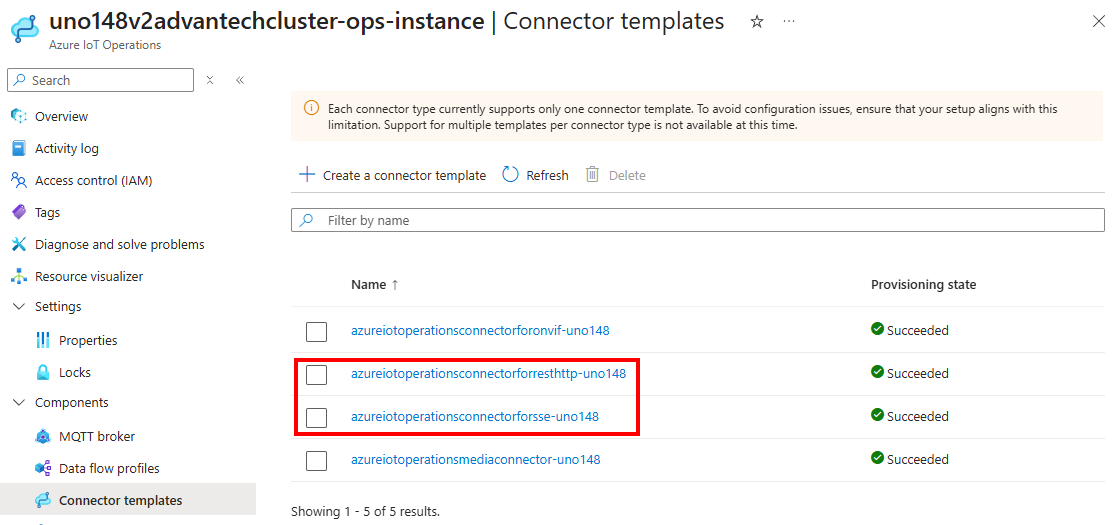
Here, the templates are deployed, along with OPC-UA and Onvif support.
Creating a device for the HTTP/REST endpoint
In the context of Azure IoT Operations, the terms asset and device can refer to both physical entities that connect to Azure IoT Operations and configuration resources within Azure IoT Operations and Azure Device Registry.
A device is a configuration resource that encapsulates the connection information required to connect to one or more physical devices or assets.
In this case, our HTTP/REST endpoint will be represented by a new device.
Add a new device for the HTTP endpoint:
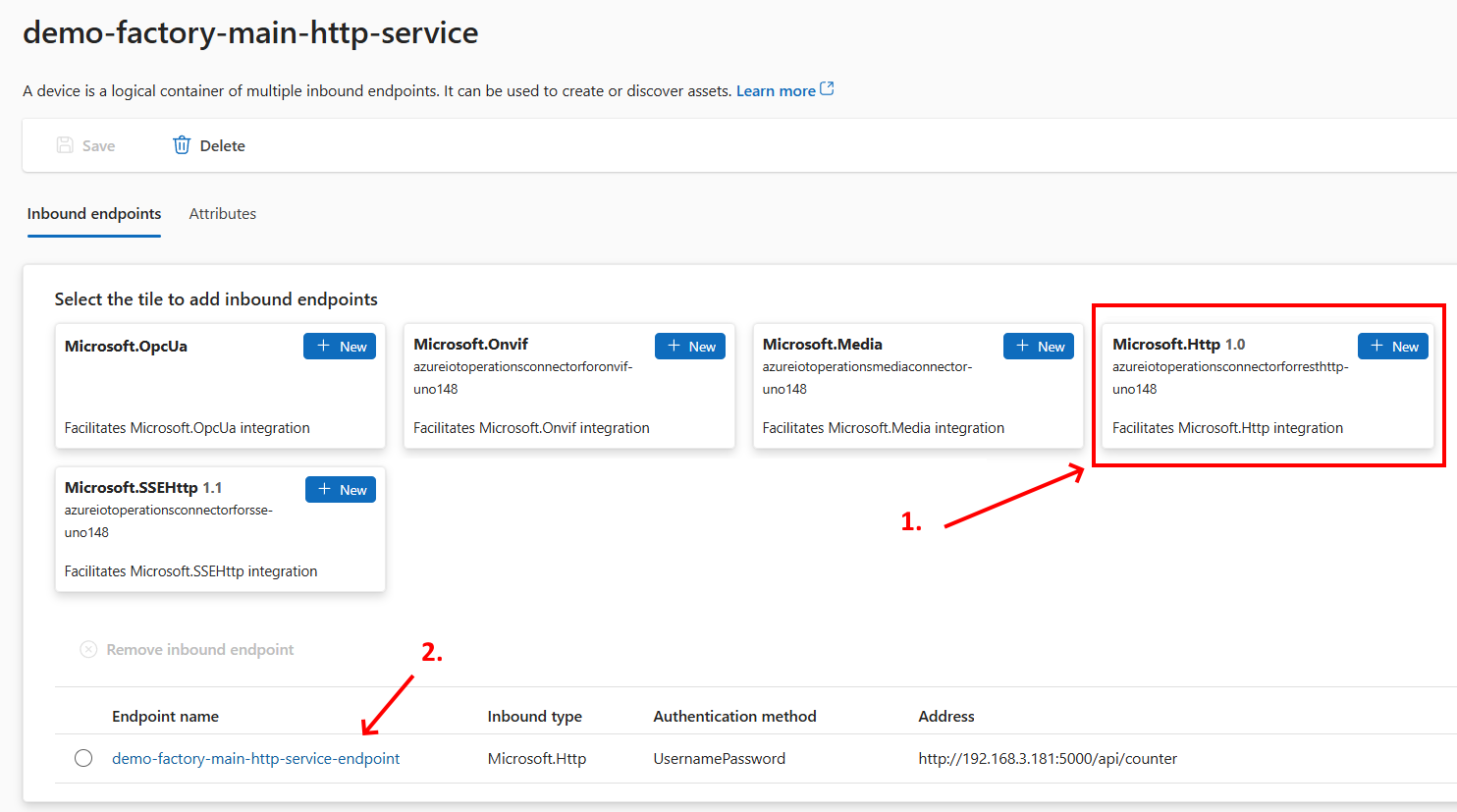
Because the demonstration endpoint uses Basic Authentication, the username/password authentication is added:
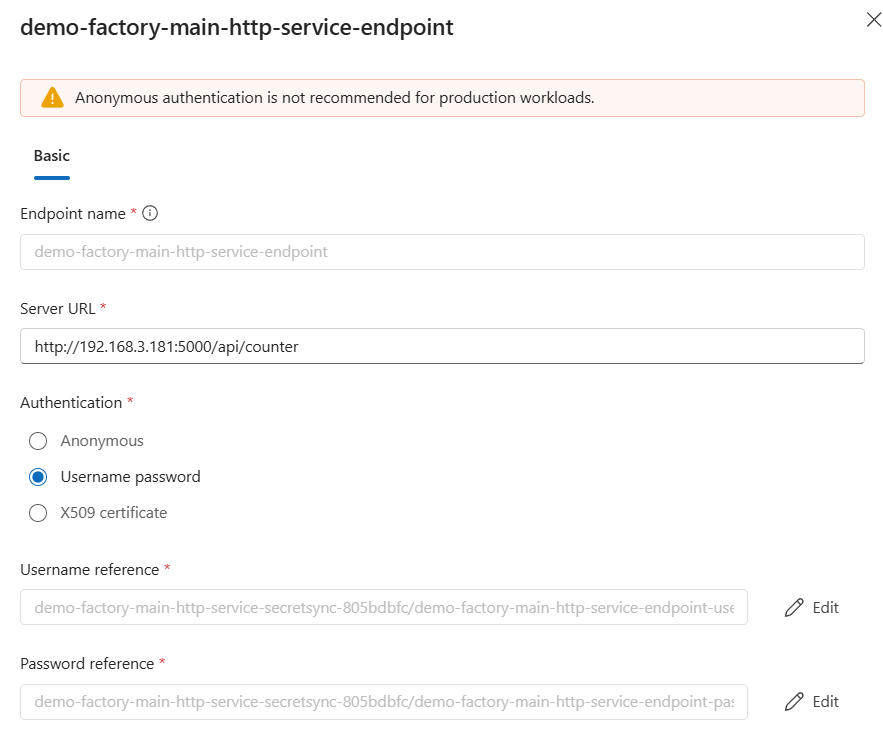
Note: The name is actually ignored by basic authentication; the password is most important.
Notice that the HTTP request Server URL is a static call. Each call repeats the previous one, without any dynamic behavior.
Note: If you want dynamic behavior for your HTTP requests, it’s advised to check out how to create a custom AKRI connector.
Save the device and see how a new pod is added to the Kubernetes cluster on the edge:

Before we move over to the asset, let’s repeat this device creation for the SS endpoint.
Creating a device for the SSE endpoint
For the SSE endpoint, a similar approach is needed.
Again, a device is created:
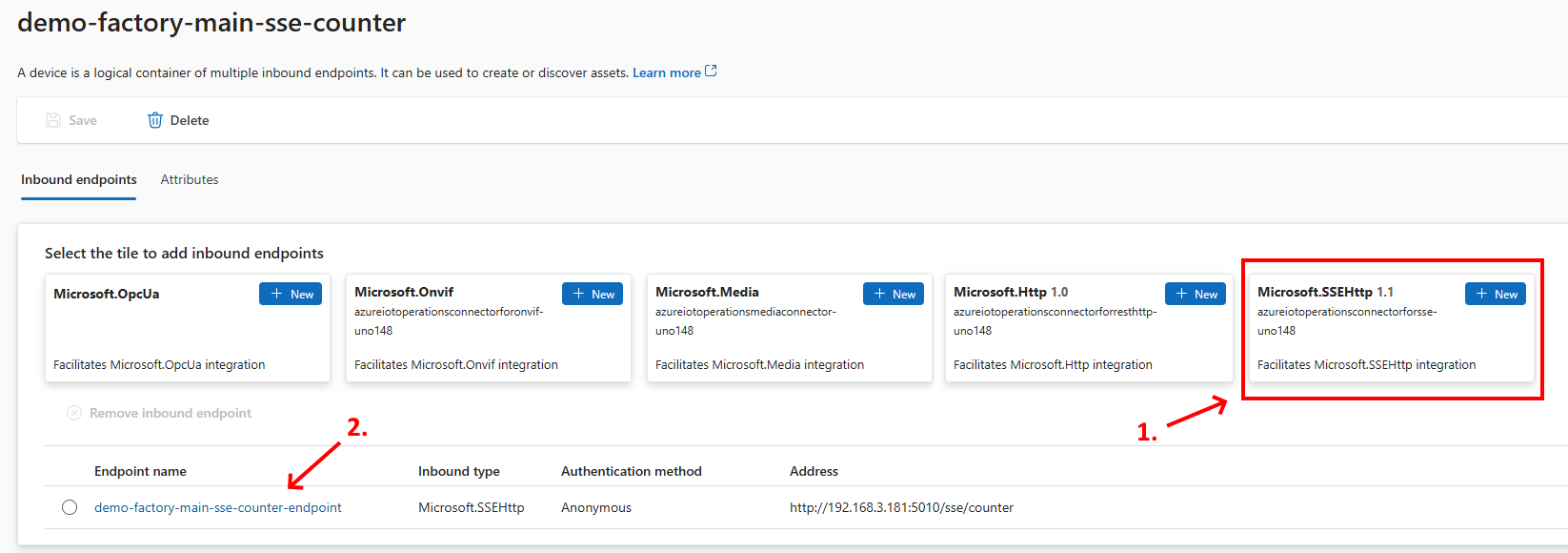
The full endpoint is referenced:
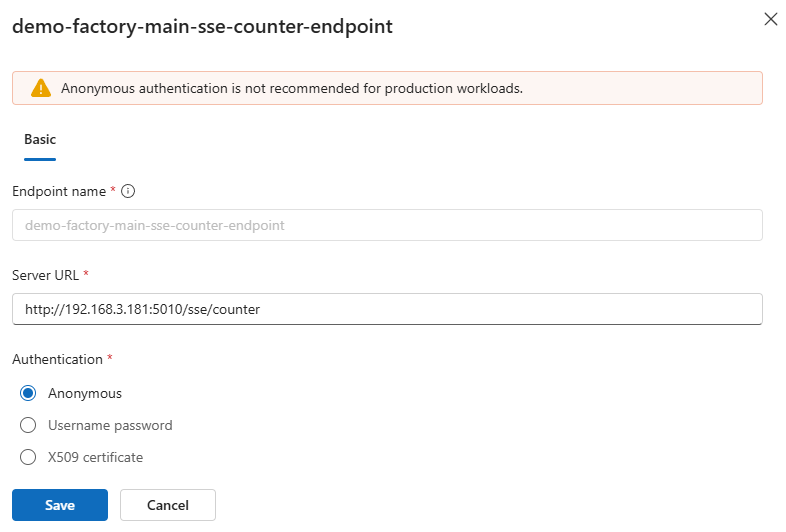
Note: For demonstration, anonymous authentication is used in this case. In production, actual authentication is advised.
Once this device is saved, the related pod is created:

Now, both devices are created for each endpoint: both HTTP/REST and SSE.
HTTP/REST asset
To actually consume the endpoint and turn the responses of each single HTTP request into a new message put on the local MQTT broker, we need to add assets on top of each device.
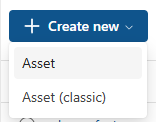
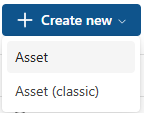
For the HTTP/REST endpoint device, we create this asset. This will start a multi-step wizard:
To add one asset, we need to name it and select the endpoint/device of our needs. The description and custom properties are optional:
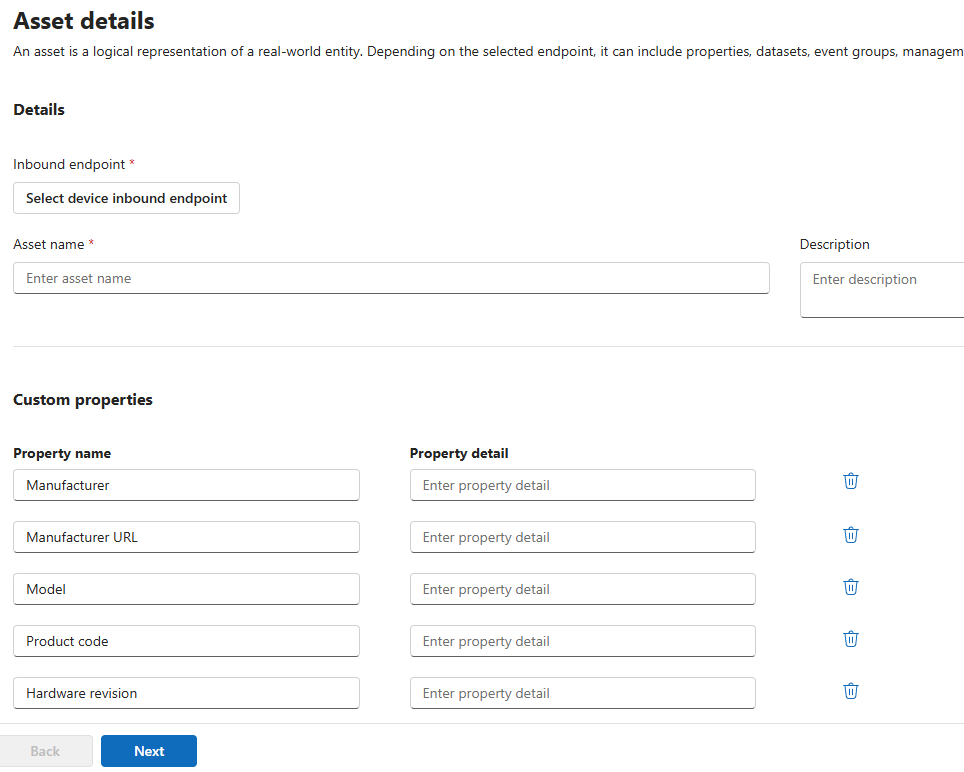
Select the HTTP/REST endpoint device you just added:
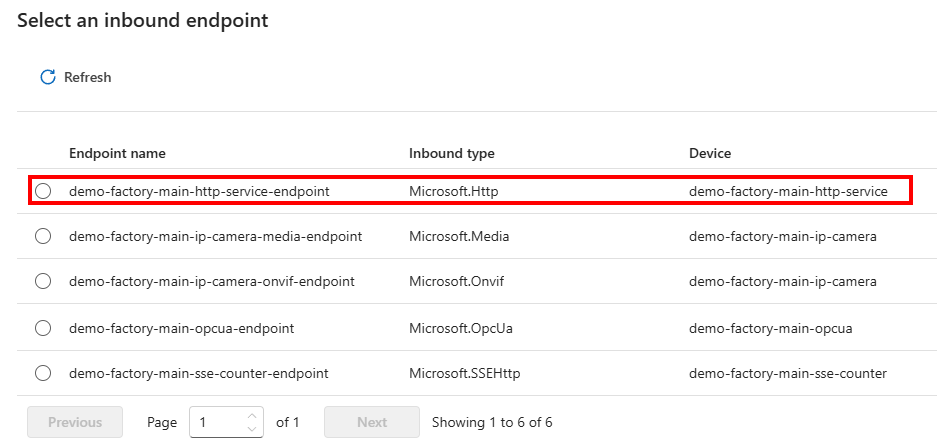
Notice that the next step or steps depend on the type of endpoint.
An HTTP/REST endpoint only asks for a dataset representing the message body of the response from each request:
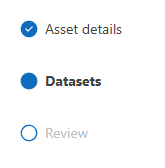
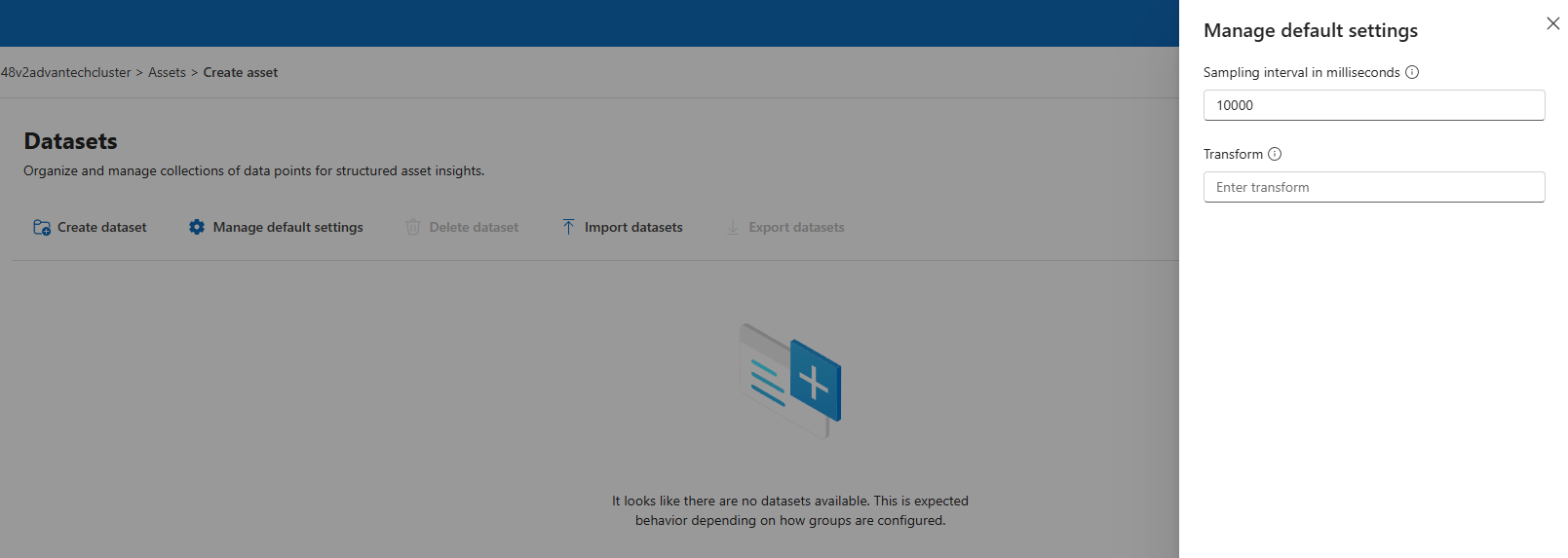
It’s interesting to see that the interval is adjustable under the default dataset settings. The default interval is every ten seconds:
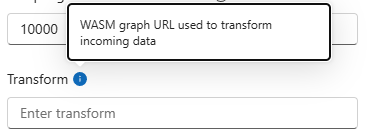
The transformation via WASM is out of scope in the blog post:
The dataset itself needs at least a name, data source, and topic (if you want to forward the messages to the MQTT broker):
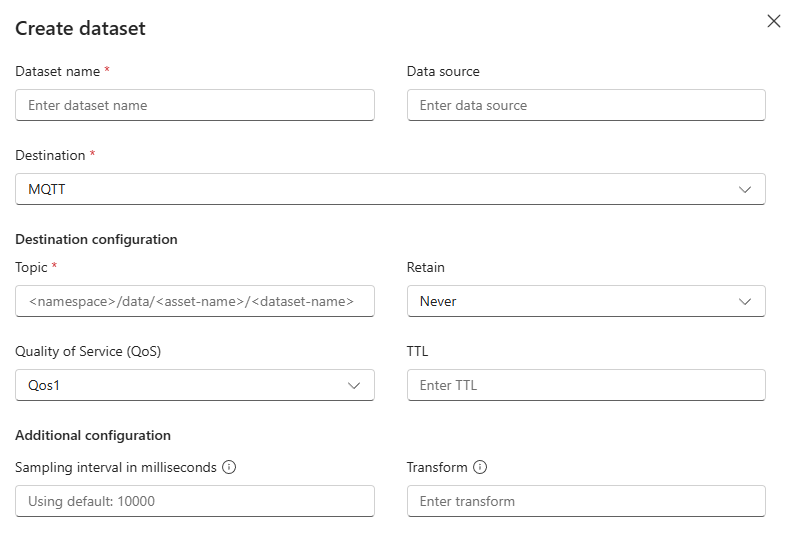
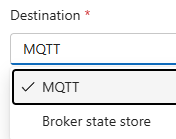
An alternative destination is the broker state store:
In our demonstration, I forward each response body of the ‘/api/counter’ endpoint to the MQTT topic ‘httprest/httprestendpointdevice/data’:
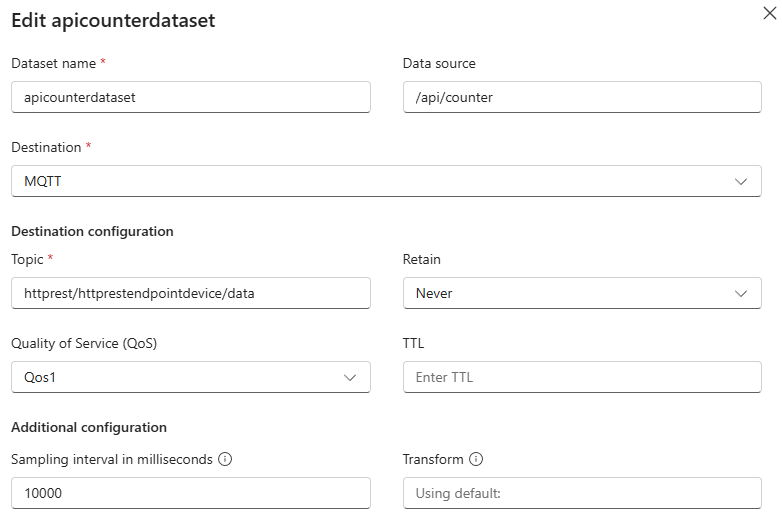
I kept the data source the same as the endpoint of the HTTP service ‘/api/counter’.
Once the asset is saved and deployed to the edge, I see the HTTP messages arrive:

As seen on the HTTP service console log, each message is requested after ten seconds:
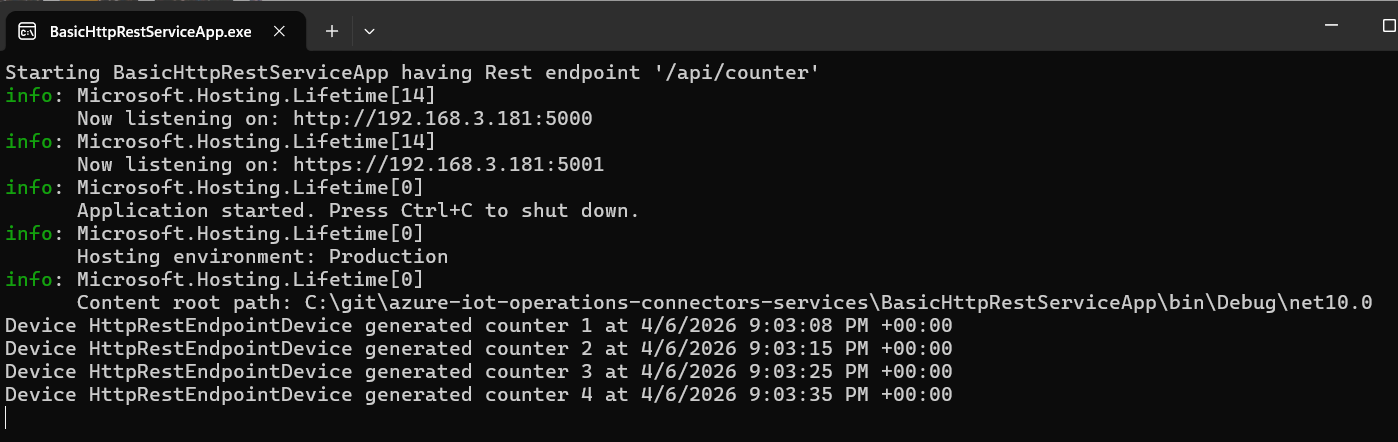
This demonstration shows how HTTP/REST endpoints can be consumed via Azure IoT Operations on the edge and forwarded to the local MQTT broker.
From there, you can transform and forward them towards any destination, for example, this Universal Namespace on the edge:

Server-Sent Event (SSE) Asset
Once an SSE endpoint device is created, we need an Asset to consume it.
Just like the HTTP/REST asset, we need to select the device/endpoint first:
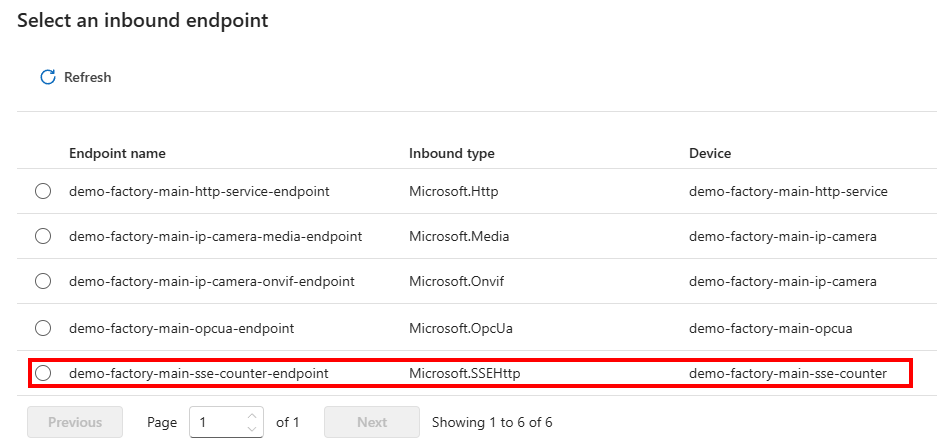
Again, the description and custom properties are optional.
Once the asset has an SSE endpoint, notice that the related wizard asks for both a dataset and an event group:
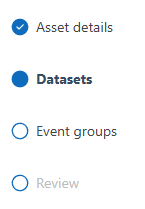
The dataset needs a proper name like ‘ssecounterevent’ and a data source:
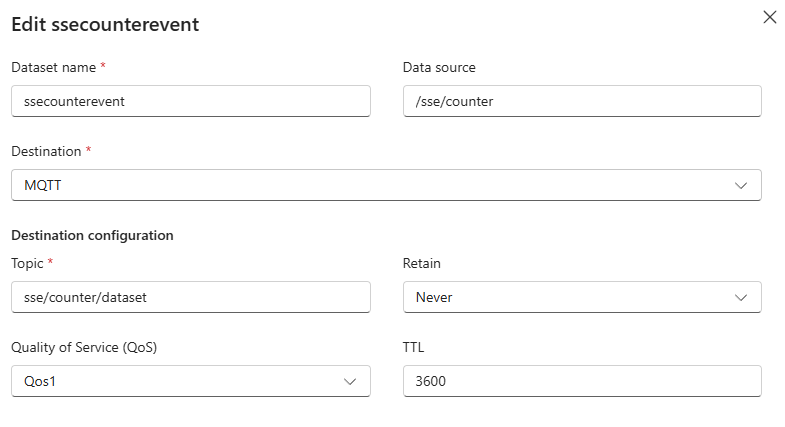
The data source must be similar to the SSE endpoint. In my case, this is ‘/sse/counter’. Be sure to check this important step.
Just to test this, I also provided a topic to this dataset named ‘sse/counter/dataset’. This seems to be ignored by the SSE connector logic.
Finally, an event in an event group must be added:
In my asset, I created one (1) event in this event group:
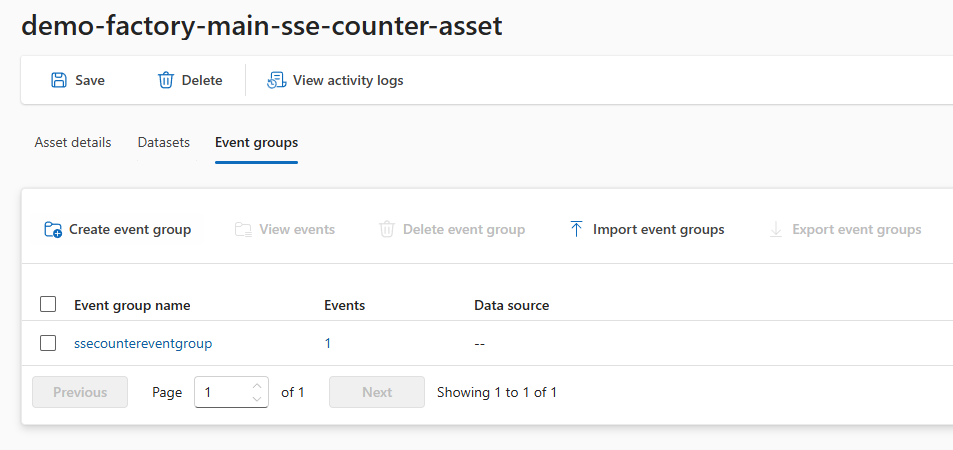
Regarding the Event group, I only provided a name representing the group:

Regarding that single event, it’s related to that type of SSE event I receive:
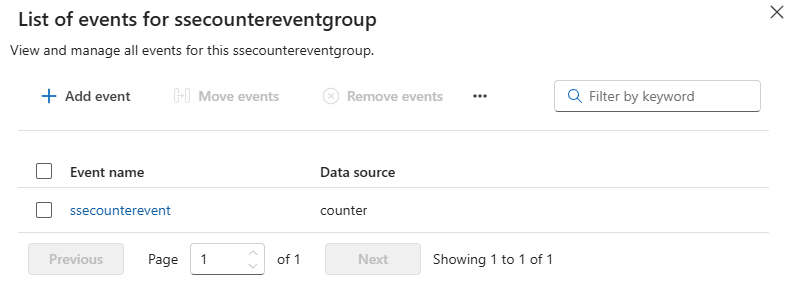
Do you remember, I got these ‘counter’ messages, as seen in the ‘event: ‘ part of each incoming message:

This ‘counter’ is the data source ‘counter’ of that single event in that event group:
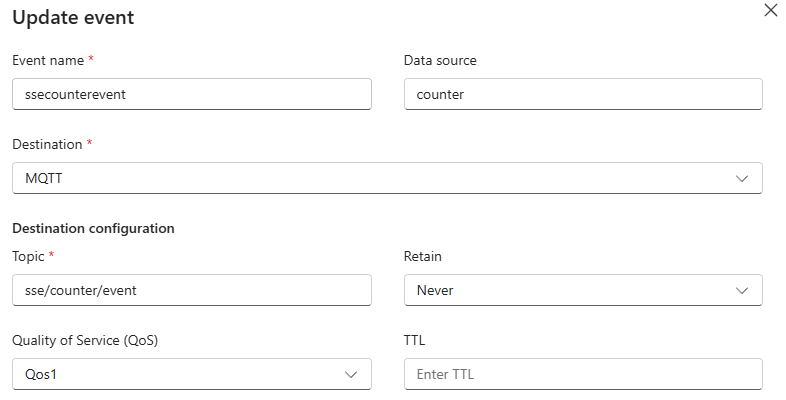
Each ‘counter’ event message is then forwarded to the ‘sse/counter/event’ MQTT topic.
Notice that this event only supports forwarding to the local MQTT broker:
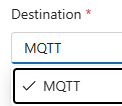
Once the asset is saved with this ‘counter’ event,

Our demonstration SSE endpoint server even shows the IP address of the remote clients:
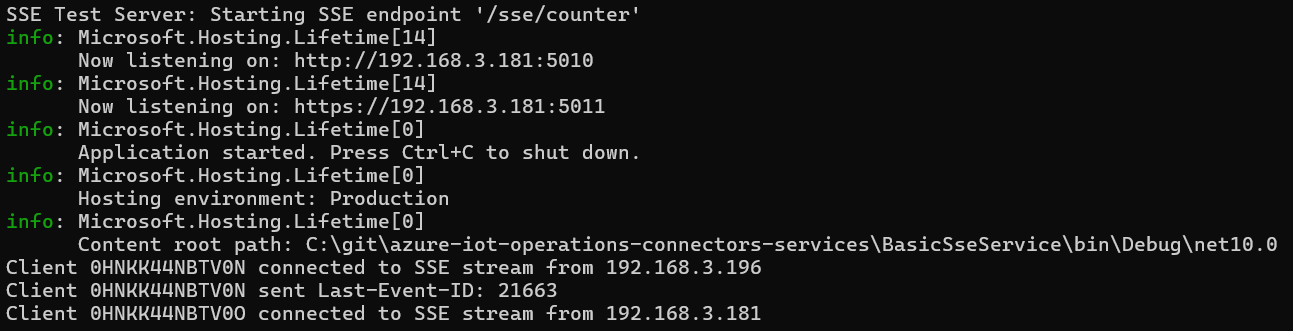
In this case, two clients joined after the service was restarted.
The test app has no state, so it’s not able to provide the ‘last event id’.
The SSE AKRI connector does provide the ‘last event id’ so your SSE service could honor this last event.
Note: Currently, the demonstration SSE service only shows the incoming ‘last event id’ but does not reset the counter accordingly.
Regarding that single event in the event group, if the SSE service exposes multiple types of events (next to ‘counter’), by adding more asset events in the event group, each event type could be directed to a different MQTT topic.
Azure Device Registry Asset
Now we have created an asset in the Azure IoT Operations experience portal. Check out the Azure portal.
IT administrators can manage these assets via ARM:
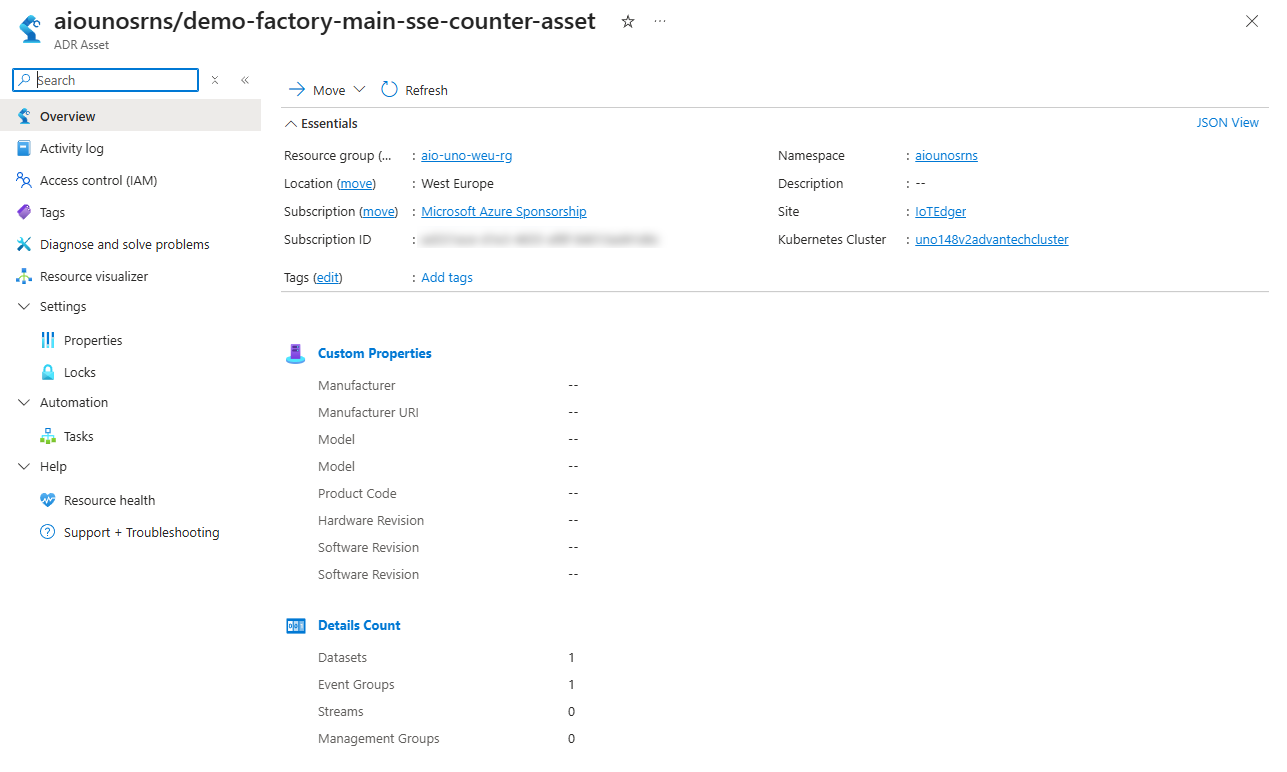
The same goes for the related Azure IoT Operations device in the Azure Device Registry:
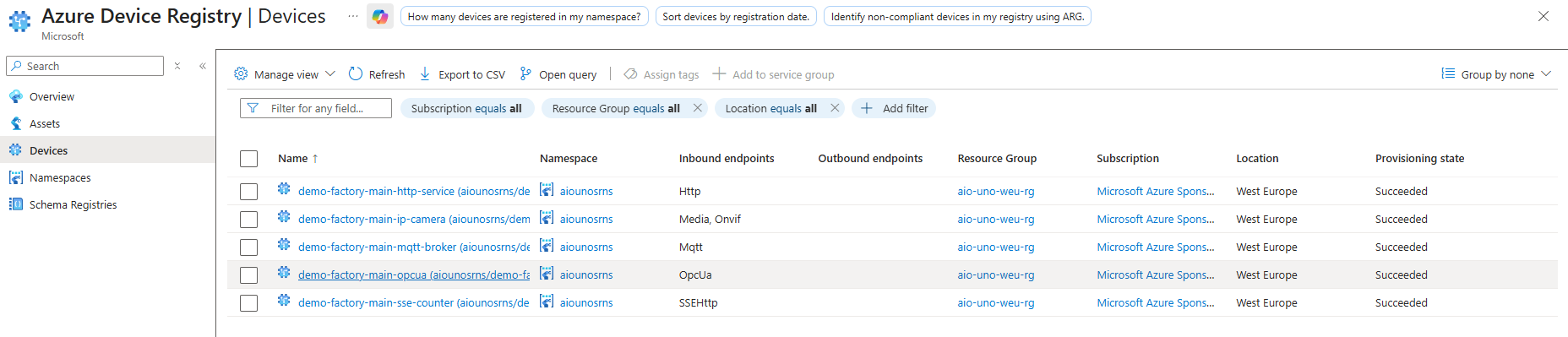
One usage could be the limitation of access to only certain groups of users to certain devices and assets.
Conclusion
In this double-slam, we have experienced how the Azure IoT Operations connector solution supports both HTTP/REST and SSE, amongst other southbound protocols.
The SSE protocol is quite easy to implement, although the official documentation needs quite some attention (it took me a while to get it working 🙂 ).
This SSE connector can consume multiple events from the same endpoint, via various ways of authentication. It also remembers the last event ID received when reconnecting. So, it’s quite feature-complete.
The HTTP/REST connector has limited use cases because it can only make the same call over and over. It is not able to provide query parameters or a request body. It also does not provide ways to do either a GET or a POST, it seems.
If you need this kind of logic, it’s recommended to deploy your own custom AKRI connector or go for a 3rd party solution.

 Sander van de Velde
15 gedachten over “Consuming southbound HTTP/REST and SSE endpoints using Azure IoT Operations”